Review: The Oracle ZFS Storage Appliance
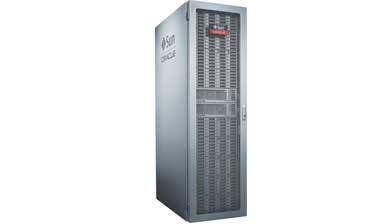
The CRN Test Center this month took a close look at the ZFS Storage Appliance 7420, Oracle's latest low-cost, flash-optimized storage hardware for high-performance transactional systems. In the ZFS, Oracle combines as much as 2 TB of DRAM with more than 10 TB of SSDs and another 1.72 PB of spinning storage to deliver an appliance with performance well beyond that of traditional tiered storage. And, it's all in a box with software so easy to use that it can be set up and configured in less than an hour and integrated in an enterprise in days rather than weeks.
To help us with the process of setting up and operating the ZFS, we traveled to the New York City offices of Cintra USA, a database services provider and Oracle Platinum partner. There we worked on a two-node storage cluster comprised of two Oracle ZFS 7420 storage appliance nodes integrated with an Oracle database appliance.
IT administrators will appreciate the browser-based GUI and ability of the ZFS to automatically scan and discover other nodes capable of participating in a cluster. "ZFS nodes are already inherently aware of each other, making cluster configuration extremely easy," said Simon Rice, database architect at Cintra. After selecting the other node, the ZFS copies all needed software to the second node, permitting that node to be set up and clustered within a few minutes.
ZFS clusters employ an active-active model under which both nodes are constantly serving the needs of storage clients. According to Abdul Sheikh, CTO and co-founder of Cintra, this is unlike anything else out there. "Oracle RAC uniquely uses both nodes as active, so if one fails, there's a 50 percent loss [of performance], but nothing stops," he said, referring to Oracle's Real Application Cluster technology.
Once the cluster was established, we could begin setting up the ZFS for storage. The first step of that six-step process was to set up data links, a process that was simply a matter of dragging network devices from the list of auto-discovered interfaces to the datalink column of the GUI.
The default settings are probably adequate for most situations, but the tool allows for easy selection of link speed and duplex settings and MTU (frame) size, if required. Datalinks are then dragged to the network interfaces column where they're assigned an IP address to complete the creation of an interface to the ZFS appliance. Once all needed interfaces are created, "hitting the Apply button runs the IFCONFIG command and sets everything up behind the scenes," said Rice.
NEXT: Configuring The Storage Pools
After selecting Active Directory, LDAP or NIS for user authentication, the next step is to set up the storage pools. The system we looked at contained available storage of 1.86 TB in cache memory, 68 GB of SSD storage and another 5.46 TB in SAS drives. Once volume sizes are chosen, a screen is presented to help with the selection of the desired storage profile. Supported types are double parity, mirrored, single parity-narrow stripes, striped, triple mirrored and triple parity-wide stripes. Each profile type is explained and characterized graphically in terms of its ability, performance and capacity. Also shown is the amount of usable storage that will result with each profile.
From the same screen, administrators also can view descriptions and select between mirrored and striped logs, with similar characterizations of availability, performance and capacity. Striped logs distribute log data evenly across all devices without redundancy, which improves capacity and performance. Mirroring logs can improve availability and certain write operations, but it reduces I/O operations and capacity by half.
There's also an option to register and connect the ZFS appliance to Oracle's support organization. This alerts the VAR or end-user to patch advisories and downloads, and it lets the appliance send out automated service requests for failed drives and other components so that technicians can arrive with replacement parts in hand.
Next is to create storage volumes and allocate them to projects. Projects in this context are for separating volumes, for example, between development and production, or for keeping cloud environments apart from conventional network shares. The ZFS can be used in any combination of server-attached storage over Fibre Channel or Infiniband, iSCSI (one or 10-Gbit Ethernet), or as a NAS using CIFS, NFS (with root access), FTP, SMB and other protocols.
When creating file systems, ZFS provides access to a full array of user permissions over mount point, file-name length and case sensitivity, as well as other settings such as file compression, block size and remote-site replication and snapshots.
Like other modern storage systems, Oracle's ZFS appliance builds in utilities that are helpful for keeping tabs on what's going on inside. Setting Oracle apart is the ability to track performance right down to a single file. "As a database administrator, you don't normally have visibility to which files are the most used on your file system," said Cintra's Rice. Using a GUI-based analytics tool, DBAs and other staff can look at file-level performance statistics such as IOps and disk utilization, without having access to any of the appliance's storage or other features. "There's a very granular security mechanism around who can see and administer what," Rice added.
NEXT: How The ZFS Performs We have seen precious few systems as easy to set up as Oracle's ZFS storage appliance and equally few that have performed as well. "One thing we've noticed running on [one] gigabit networks is that we max out the network throughput long before we max out the ZFS storage [bandwidth]," said Cintra's Sheikh. According to Oracle's own performance benchmarks, the ZFS 7420 appliance delivered 10,703.69 SPC-2 MB/s and a price-performance of $35.24, placing it in the top 10, not only placing it ahead of IBM's DS8800 but also doing so while using half the number of hard disk drives.
Make no mistake: ZFS is not tiered storage; it's cached storage, giving it a flexibility that Sheikh says is not available with many other types of storage. "There's no need deal with hard-wired RAID design or go through a tiered data ILM strategy where you're looking to evolve your data hotspots between tiers." Those issues are managed by ZFS, which in the days of Sun Microsystems stood for the Zettabyte File System that was once part of Solaris.
"Oracle took the best of the ZFS file storage system from the open source days and married it with the latest generation of SSDs, RAM and spindles, bringing [them] together [in] a single virtual pool of storage," said Sheikh. The result, according to Sheikh, is flexibility. "For planning, design and implementation of a traditional enterprise-class NAS or SAN platform, you would give yourself a few weeks to get through a well thought-out design to make sure you're not getting into any design decisions that will tie your hands down the road. But, there's nothing in hard-wired into the ZFS configuration that can't be revisited later and modified."
While ZFS pricing depends on the number of size of drives and memory included, Sheikh says a typical configuration "comes in at the $100K mark, a significantly lower price point than [other] enterprise-class systems," and is a good fit in organizations too small to support a number of dedicated DBAs.
For its simple, GUI-driven setup and configuration, solid price-performance and world-class Oracle support behind it, the CRN Test Center recommends the ZFS Storage Appliance.
PUBLISHED SEPT. 7, 2012